How to Speed Up Your Home Wi-Fi in 2026: Fix Slow Internet Without Buying a New Router
- Primary Signal: How to Speed Up Your Home Wi-Fi in 2026: Fix Slow Internet Without Buying a New Router
- Overview: A practical, diagnosis-first guide to fixing slow home Wi-Fi: how to tell whether the line, the router, or congestion is at fault, free fixes for placement, bands and channels, and...
- Verification: Analyzed and compiled by CyberTech 568 editorial monitoring desk.
Your video call freezes, the movie buffers at the best part, and the game lags exactly when it matters. Before you pay for a faster internet plan or buy a new router, stop: in most homes the broadband line is fine and the problem is the Wi-Fi inside the house. This guide shows you how to find the real bottleneck and fix it, starting with free changes that take minutes and ending with the few upgrades that are actually worth paying for.
Most slow-Wi-Fi advice fails because it treats every problem the same way. A weak signal in a far bedroom, a congested evening connection, and a genuinely slow broadband line need completely different fixes, so spend ten minutes diagnosing before you change anything.
Run three speed tests. First, stand next to the router and test on a phone or laptop connected by an Ethernet cable if you can; that number is close to what your broadband line actually delivers. Second, run the same test in the room where the problem happens, on Wi-Fi. Third, repeat the slow-room test in the evening, when neighbours are also online. Write the three numbers down.
Now read the results. If the wired test is already slow, the problem is your plan, your line, or your provider, and no router trick will fix it; skip to the section on calling your provider. If the wired test is fast but the Wi-Fi test in the far room is slow, you have a coverage problem, and the placement, band, and channel fixes below will help. If speeds collapse only in the evening, you are dealing with congestion, either on your provider's network or on crowded Wi-Fi channels in your building.
Also check whether the problem is one device or every device. If only one phone is slow while everything else is fine, update that device, forget the network and rejoin it, and check whether it is stuck on the slow 2.4 GHz band. If every device is slow, the router or the line is the suspect. This one distinction saves hours of pointless router tweaking.
Providers sell speed, but what you feel day to day is whether your connection can carry everything happening at once. A single HD video stream needs roughly 5 to 8 Mbps, a 4K stream needs around 25 Mbps, a video call needs 3 to 8 Mbps, and online gaming cares more about low latency than raw speed: a stable 20 Mbps connection with low ping beats a flaky 200 Mbps one. Add up what your household does at the same time, then add headroom.
A household with two people streaming HD video and browsing needs about 50 Mbps of real, delivered speed. Add 4K streaming, large game downloads, or several people working from home, and 100 to 200 Mbps starts to make sense. Beyond that, most families will not feel the difference in browsing or streaming, though big downloads and uploads finish faster. If your wired test already delivers your plan's speed and your daily use is covered, a faster plan is the last thing you need; fix the Wi-Fi instead.
Router placement is the single biggest free improvement most homes can make. Wi-Fi signals weaken as they pass through walls, floors, and metal, and they spread outwards from the router, so a router stuffed in a corner cupboard is already fighting with one hand tied behind its back.
Put the router as close to the centre of your home as practical, out in the open, raised off the floor on a shelf or table, with its antennas pointing upright. Keep it away from thick walls, metal cabinets, mirrors, fish tanks, and the back of the television. Keep it away from the microwave, cordless phones, and baby monitors too, because those devices share or crowd the same radio spectrum and cause interference, especially on the 2.4 GHz band.
Do not hide the router to make the room look tidier. Every cupboard door, stack of books, and metal object between the router and your devices costs speed. If moving the router means running a longer cable from the wall socket, that is usually worth it: one longer cable to a good central spot beats a short cable to a terrible corner spot every time.
Most modern routers broadcast on two or three bands: 2.4 GHz, 5 GHz, and on newer models 6 GHz. They behave very differently. The 2.4 GHz band travels further and passes through walls better, but it is slower and far more crowded, because neighbours' routers, Bluetooth devices, and many smart home gadgets all use it. The 5 GHz band is much faster but has shorter range and struggles through thick walls. The 6 GHz band is fastest of all, but only the newest devices support it and its range is shortest.
If your router gives each band a separate network name, use them deliberately: put phones, laptops, and TVs near the router on 5 GHz, and put distant devices, smart plugs, and cameras on 2.4 GHz, where reach matters more than speed. If your router uses one combined name for all bands, most devices will pick a band automatically, but older or cheaper devices sometimes cling to 2.4 GHz even when 5 GHz would be faster. In that case, splitting the network names in the router settings gives you control back.
One warning: do not force everything onto 5 GHz. A device in a far room on a weak 5 GHz signal will be slower and less stable than the same device on a strong 2.4 GHz signal. The goal is the strongest usable signal for each device, not the fastest-sounding band name.
In a flat or apartment block, your neighbours' routers are part of your problem. Wi-Fi bands are divided into channels, and when several nearby networks sit on the same channel they interfere with each other, like several people talking loudly in the same small room. This is why Wi-Fi often feels worst in the evening, when everyone is home and online.
Most routers pick a channel automatically, and most do a decent job. But if your speeds drop sharply at peak times, it is worth checking. Log in to your router's settings, usually by typing 192.168.0.1 or 192.168.1.1 into a browser, and look for the wireless channel setting. On the 2.4 GHz band, only channels 1, 6, and 11 do not overlap with each other, so one of those three is almost always the right choice. A free Wi-Fi analyser app on your phone can show which channels your neighbours are using, so you can pick the quietest one.
On the 2.4 GHz band, also keep the channel width at 20 MHz rather than 40 MHz. A wider channel sounds faster, but in a crowded building it overlaps with more neighbours and causes more collisions. On 5 GHz there is far more room, so wider channels of 80 MHz or even 160 MHz are usually fine and genuinely faster. If your router has an auto setting and your connection is stable, leave it alone; change channels manually only when you have evidence of congestion.
The oldest advice in tech survives because it works. Routers run for months without a break, and temporary faults, memory leaks, and stuck connections build up. Unplug the router from the power socket, wait a full 30 seconds, and plug it back in. Do not press the small reset pinhole on the back unless you intend to wipe every setting back to factory defaults; a restart and a reset are very different things.
While you are at it, update the router's firmware. Firmware is the router's internal software, and updates fix bugs, close security holes, and sometimes improve speed. Look for a firmware update or administration section in the router settings, and check for updates every few months. Update your devices too: an old phone or laptop with outdated Wi-Fi drivers can drag down its own connection no matter how good the router is.
Sometimes nothing is broken; the connection is simply full. A game update, a cloud photo backup, a 4K stream, and a video call running at once can saturate even a decent plan. Most routers show a list of connected devices and, on better models, how much data each one is using. Check that list before assuming the router is at fault.
Move large downloads and cloud backups to overnight, and pause automatic game updates during work hours. If your router offers Quality of Service, often labelled QoS, turn it on and prioritise video calls and work devices over downloads and background updates. QoS does not create extra speed, but it decides who gets served first when the connection is busy, which is exactly what stops a call freezing because someone started a download.
Also check for devices you do not recognise. An unknown device on your network may be a neighbour using your Wi-Fi, or a forgotten gadget still syncing. If you find one, change your Wi-Fi password immediately and make sure the router uses WPA2 or WPA3 security, never the outdated WEP setting. Give guests their own guest network if your router supports it, so visitors never get the main password.
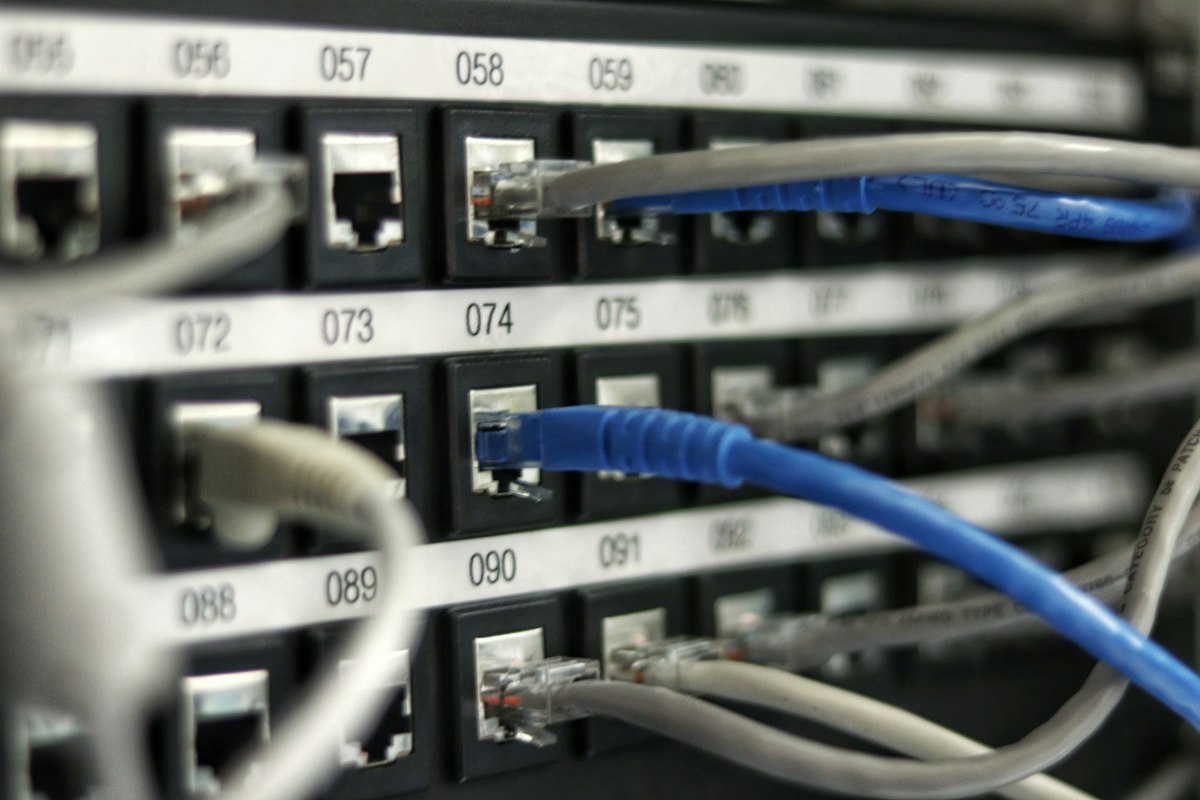
Wi-Fi is convenient, but a cable is still faster, more stable, and lower latency than any wireless connection. Every device you move to Ethernet also frees up Wi-Fi airtime for the devices that genuinely need wireless, so cabling one or two devices often improves everything else too.
Start with the devices that suffer most from lag and buffering: desktop computers, game consoles, and smart TVs. A single Ethernet cable to the TV can end buffering entirely, and a cable to a gaming PC or console cuts latency in a way no Wi-Fi tweak can match. If running a cable across the house is impractical, a pair of powerline adapters, which carry the signal through your home's electrical wiring, is a reasonable compromise, though their speed depends heavily on your wiring.
If the free fixes leave one or two rooms weak, you have three upgrade paths, and choosing the wrong one wastes money. A basic range extender is cheapest, but it usually creates a second network name, halves the speed on the extended signal, and drops connections as devices move between the router and the extender. It is acceptable for a single dead spot used by one device, and poor for a whole house.
A mesh Wi-Fi system is the better choice for larger homes or homes with thick walls. Mesh units talk to each other and share one network name, so your phone moves between them without dropping, and speeds stay steadier. Two or three mesh units cover most houses. Buy mesh when the house itself is the problem: distance, floors, or concrete walls.
Replace the router itself when it is old, when it lacks 5 GHz, when it cannot handle your number of devices, or when your provider supplied it years ago and it has never been updated. Modern households commonly run fifteen or more connected devices, and an old router can simply run out of capacity. Before buying, check what your provider offers: many will replace an old supplied router free if you report a fault and your speeds are below what you pay for.
If your wired test is far below your plan's speed at different times of day, or the connection drops regularly even next to the router, the problem is on the provider's side of the wall, and no home fix will solve it. Call them, but go armed with evidence, because a vague complaint gets a vague response.
Telling them you ran a wired speed test next to the router, the numbers you got, the plan speed you pay for, and the times the problem happens turns a complaint into a fault report they can act on. Ask them to test your line, check for faults in your area, and confirm whether your router is due for replacement. If speeds stay consistently below the promised minimum and they cannot fix it, ask about your options to change plan or provider, and keep a note of every call, date, and reference number.
Run a wired test next to the router and a Wi-Fi test in the slow room, and write both numbers down. Restart the router properly, unplugged for 30 seconds. Move the router to a central, raised, open spot away from metal, mirrors, and the microwave. Put nearby devices on 5 GHz and distant ones on 2.4 GHz. Check for unknown devices, switch security to WPA2 or WPA3, and change the password if anything looks unfamiliar. Pause big downloads, turn on QoS for calls and work, and cable the TV, console, or desktop if you can. If the wired test is still slow after all that, call your provider with your test results in hand.
Slow Wi-Fi usually has a boring, fixable cause: a router in a bad spot, a device on the wrong band, a crowded channel, or a connection simply shared by too many things at once. Work through the diagnosis first, apply the free fixes in order, and spend money only on the specific weakness that remains. Most homes can get a noticeably faster, steadier connection in an afternoon, without a faster plan and without a new router.
📖 Continue Reading the Full Story
Continue reading this article on CyberTech 568.
⚡ Access Full Content NowMore from CyberTech 568